
- What technologies does Pyramis support?
- What are the Recommended PC Specifications?
- Can I use a 3Dconnexion mouse with Pyramis?
- Is Pyramis available in multiple languages?
- Are there any resources or videos that I can use to get started with Pyramis?
- Why can’t I see all the options mentioned in the manual?
- How can I see information about my Pyramis license?
- How can I check the version of the software currently installed on my PC?
- Are trial versions or temporary licenses available?
- How can I activate my Temporary license?
- What support structure types can Pyramis generate?
- What does the “Invalid Output” message mean?
- Can Pyramis integrate with CIMsystem’s other software solutions?
What technologies does Pyramis support?
Pyramis is an open and easy-to-use dental 3D printing software solution designed for the complete management of dental restorations. It is compatible with all major CAD systems and a wide range of 3D printers. Pyramis supports multiple printing technologies, including DLP/LCD, Laser, and PolymerJet systems.
What are the Recommended PC Specifications?
You can view our recommended PC specs here.
Can I use a 3Dconnexion mouse with Pyramis?
Yes, Pyramis is compatible with any 3Dconnexion 3D mouse. Once connected, the device can be used immediately without any additional configuration or activation. For improved navigation, users can enable the display of the pivot point (rotation point). To activate the pivot point, open the Settings menu and enable the corresponding option. If you experience any difficulties, please contact your reseller for assistance.
Is Pyramis available in multiple languages?
Yes, Pyramis is currently available in the following languages: English, Italian, Spanish, Chinese, Korean, French, Portuguese, and Turkish.
Note: Some translations may be incomplete depending on the software version or selected language. If a specific section or command has not yet been translated, it will be displayed in English.
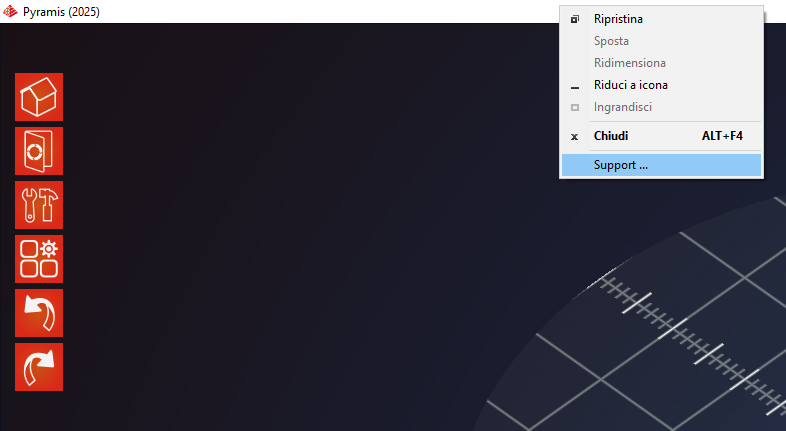
Then, when the support window appears, click the “Manual” icon:

Why can’t I see all the options mentioned in the manual?
Pyramis is available with different authorization levels. The manual includes all available features; however, versions with lower authorization levels may not include every option described.
How can I see information about my Pyramis license?
To view information about your Pyramis license, click “Select Job Management” or right-click on the top bar of the software and click “Support”.
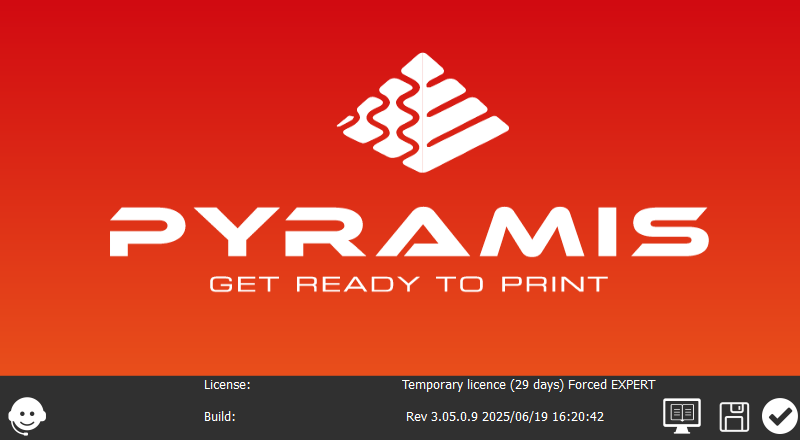
Once you click “Support”, a Support Page window will appear, displaying your current license information in the “License” field.
How can I check the version of the software currently installed on my PC?
To view the version of Pyramis currently installed on your computer, right-click the top bar of the software and click “Support”.
In the window that appears, the current software version is displayed in the “Build” field.
Are trial versions or temporary licenses available?
Yes. A trial version of Pyramis is available for download at the following link: here.
Please select the current software year when downloading.
To evaluate the latest features and improvements, we also recommend downloading the most recent update for the same software year, available at the following link: here.
Note: The update should be installed after completing the main software installation.
Once installation is complete and Pyramis is launched for the first time, a License Request window will appear.
How can I activate my Temporary license?
If Pyramis is started without a dongle (USB) connected to the PC, a notification window will appear indicating that no dongle has been found. To get a temporary license, click “Request License” in the dialog box.
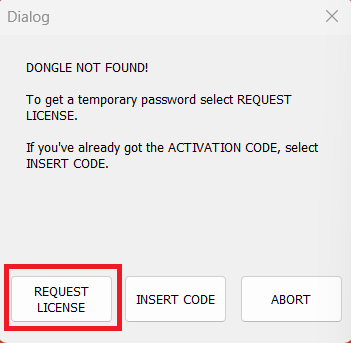
Copy the 20-Digit Installation Code and include it in an email with the following information:
- Subject Line: Temporary License Key
- Reseller Name:
- Lab Name:
- Contact Information (Skype ID, Telephone Number, Email, Etc.):
- Reason for Temporary Code:
Then send the e-mail to:
- Americas: americas@cimsystem.com
- International: support@cimsystem.com
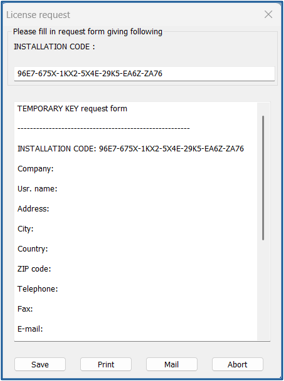
You will receive your Temporary License Key back within 12-24 business hours.
What support structure types can Pyramis generate?
Pyramis can generate different support structure types depending on the printing technology being used.
- For DLP/LCD printing technologies, Pyramis generates conical or cylindrical pillar supports, depending on the configured parameters. It is also possible to create a build plate contact base to improve platform adhesion.
- For laser sintering, laser melting, and similar technologies, three types of supports can be used: cones or cylinders (depending on the configured size parameters), cross-shaped pillars without surface, or wall supports without surface.
What does the “Invalid Output” message mean?
Pyramis machine configurations are provided as validated and locked settings to ensure proper machine operation. If changes are made to platform dimensions, machine coordinates, or slicing parameters, the generated output is no longer considered valid and is therefore unusable. When this occurs, Pyramis displays an Invalid Output message, indicating that the output must be regenerated using the updated configuration settings. For this reason, modifying these parameters is strongly discouraged. If you encounter this message, please contact your reseller for assistance.
Can Pyramis integrate with CIMsystem’s other software solutions?
Absolutely. Pyramis can be integrated with other CIMsystem software solutions like Make&Mill, to streamline workflows and allow you to expand your job processing capabilities.
You may be interested also in: