
MAKE&MILL
You dental CAM for Sintering and Milling
- Is Make&Mill a full CAM software like MillBox?
- Is Make&Mill compatible with any milling machine?
- What material types is Make&Mill compatible with?
- Does Make&Mill use the full machining area available in your mill?
- How Does Make&Mill Ensure Consistent Precision?
- How can I see information about my Make&Mill license?
- How do I request a Temporary Make&Mill License?
- How can I activate my Temporary licence?
- What are the Recommended PC Specifications?
- Are there any resources or videos that I can use to get started with Make&Mill?
- Annual Updates vs Annual Version Release – What’s the difference?
- Can Make&Mill integrate with CIMsystem’s other software solutions?
Is Make&Mill compatible with any milling machine?
Yes, Make&Mill is an open software system that can be paired with any milling machine. It can be purchased either as a stand-alone hybrid milling solution or can be integrated into MillBox, providing additional milling workflow capabilities.
Does Make&Mill use the full machining area available in your mill?
Yes. Make&Mill can refine 3D-printed restorations positioned within either a plate or a net configuration. Unlike solutions that restrict restorations to the perimeter of the net, Make&Mill allows the entire blank to be utilized, enabling restorations to be placed across the full machining area. This maximizes blank usage, increases productivity, and can significantly reduce production time.
How Does Make&Mill Ensure Consistent Precision?
Make&Mill combines dedicated hardware and calibration tools to maintain exceptional accuracy throughout the refinement process. A specially designed holder helps identify and correct centering errors when mounting SLM-printed parts, while advanced calibration tools allow users to verify and restore machine accuracy over time. The result is predictable, repeatable refinement and a precise fit for every restoration.
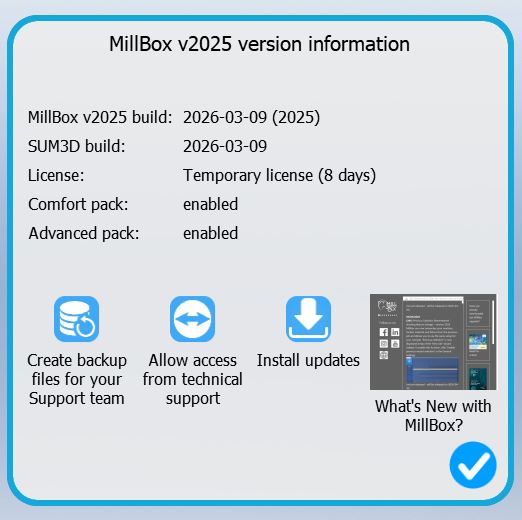
How can I see information about my Make&Mill license?
To see information about your Make&Mill license, click “Select Job Management” on the left side of the Make&Mill start screen and then go to “Support”. Once you click on “Support”, a Support Page window will appear, displaying the following information:
How do I request a Temporary Make&Mill license?
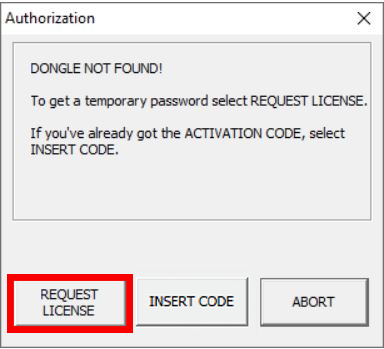
First, ensure Make&Mill is installed on your PC. For installation assistance, contact your reseller or dealer. If Make&Mill is launched without a dongle, a notification window will indicate that no dongle was found. Click REQUEST LICENSE. Your 20-Digit Installation Code and the Temporary Key Request will appear.
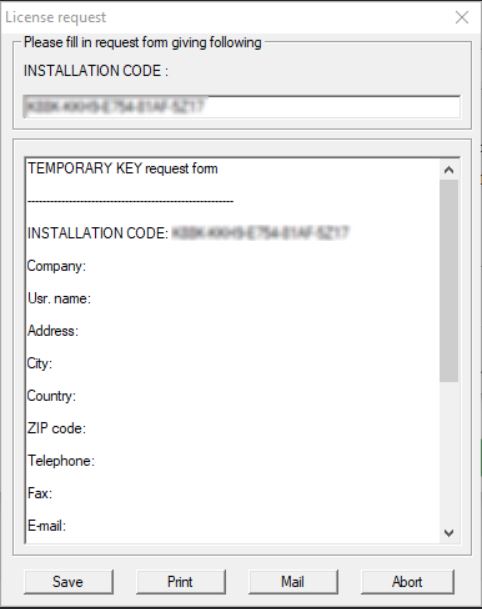
Copy the 20-Digit Installation Code and include it in an email with the following information:
- Subject Line: Temporary License Key
- Reseller Name:
- Lab Name:
- Contact Information (Skype ID, Telephone Number, Email, Etc.):
- Reason for Temporary Code:
Send To:
- Americas: support.americas@cimsystem.com
- Asia: support.asean@cimsystem.com
- International: support@cimsystem.com
You will receive your Temporary License Key within 12-24 business hours.
How can I activate my Temporary licence?
Launch Make&Mill and click on “Insert Code” in the dialog window.
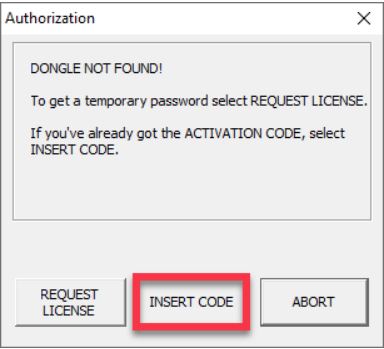
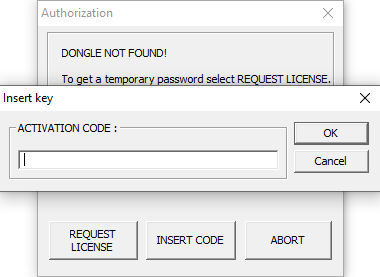
Copy the 18 digit code sent in the email from CIMsystem and paste it into the Activation Code Field. You will then be asked to restart Make&Mill.
What are the recommended PC specifications?
You can read our recommended specs here.
USA users only: CAM PC’s with high performance specs for MillBox and Make&Mill are available for purchase from CIMsystem. See CAM PCs
Annual Updates vs Annual Version Release – what’s the difference?
We provide Make&Mill updates several times throughout the year and don’t hold back the best features for an annual version. By purchasing Annual Updates Access, you unlock access to every software improvement and development between January 1st to December 31st each year.
These updates include:
- New features and performance enhancements
- Global CAM strategy improvements
- Stability fixes and compatibility updates (e.g., for Windows)
It’s important to purchase Annual Updates Access early in the calendar year so you can take advantage of every update from day one of the new year.
You may be interested also in: