
MILLBOX
Dental CAM software for smart restorations
- How can I retrive my MillBox license information?
- How do I request a Temporary MillBox License?
- How can I activate my Temporary licence?
- What are the recommended PC specifications?
- How can I get a MillBox training?
- How can I get the most recent MillBox functions?
- How can I access technical support? Is there any guide or video that I can use to get started with the MillBox software?
- Annual Updates vs Annual Version Release – What’s the difference?
- Which type of restorations can I manage with MillBox?
How can I retrieve my MillBox license information?
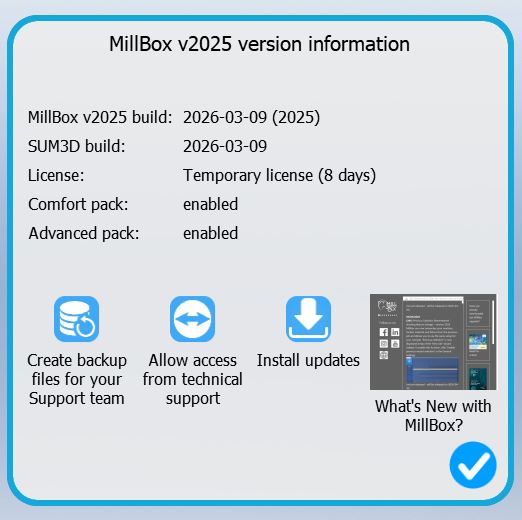
To retrieve information about your MillBox license you need to click on “Select Job Management” on the Left Side of the MillBox start screen, then go to “Support”. Once you click on “Support”, a Support Page window will appear, displaying the following information:
How do I request a Temporary MillBox license?
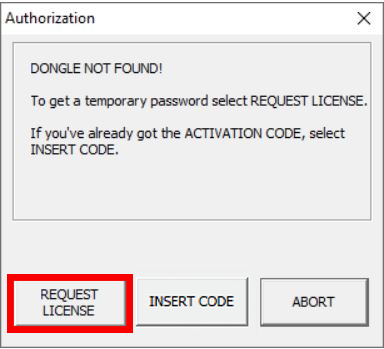
First, please ensure MillBox is installed. For installation assistance, contact your reseller or dealer.If MillBox is launched without a dongle, a notification window will indicate that no dongle was found. Click REQUEST LICENSE. Your 20-Digit Installation Code and the Temporary Key Request will appear.
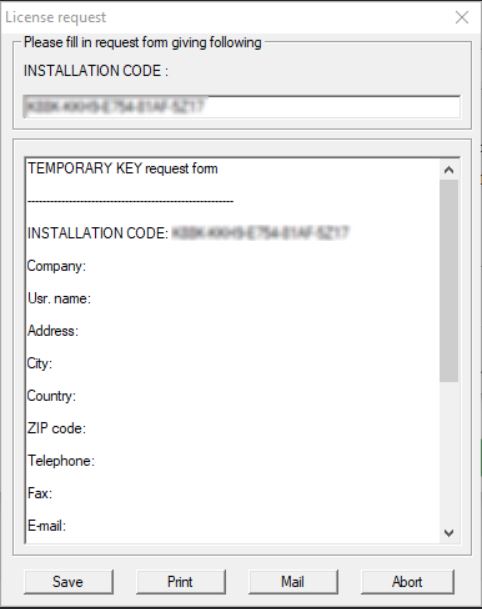
Copy the 20-Digit Installation Code and include it in an email with the following details:
- Subject Line: Temporary License Key
- Reseller Name:
- Lab Name:
- Contact Information (Skype ID, Telephone Number, Email, Etc.):
- Reason for Temporary Code:
Send To:
- Americas: support.americas@cimsystem.com
- Asia: support.asean@cimsystem.com
- International: support@cimsystem.com
We will send a response within 12-24 business hours with your Temporary License Key.
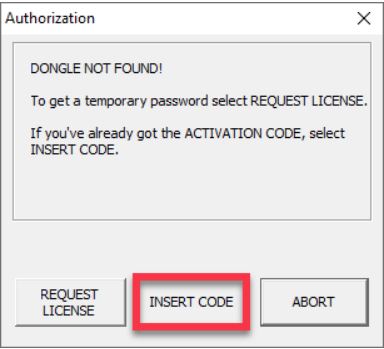
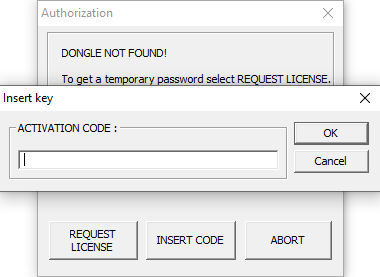
Insert the 18-Digit code you received from CIMsystem into the Activation Code Field. You will then be asked to restart MillBox.
What are the recommended PC specifications?
You can read our recommended specs by clicking here.
USA users only: CAM PC’s with high performance specs for MillBox are available for purchase from CIMsystem. See CAM PCs
How can I get MillBox Training?
To receive MillBox training, please ask your reseller or contact CIMsystem by filling out this form. We currently only offer group MillBox training courses in the USA and Latin America
How do I get the latest MillBox features?
To get access to the latest software improvements like new strategies, new tools, material packages and new features, you will need to update to the latest version of MillBox. If you want to update, please contact your reseller or CIMsystem sales representative.
30 day free trials available upon request.
How can I access technical support? Are there any guides or videos I can use to get started with MillBox?
There are several options to get quick support on MillBox:
- You can access the HOW TO video playlist on You Tube
- You can join and interact with MillBox Expert Group, the Facebook community where you can share problems and solutions. Join the Group Now!
- Access our MillBox Learning Center https://help.cimsystem.com/ , your one stop shop for Official MillBox Guides and Walkthroughs!
Annual Updates vs Annual Version Release – what’s the difference?
We provide updates very often throughout the year and don’t hold back the best features for an annual release. By purchasing Annual License, you unlock access to all software improvements and developments that take place from January 1st to December 31st. These updates include:
- New features and performance enhancements
- Global CAM strategy improvements
- Stability fixes and compatibility updates (e.g., for Windows)
It is important to purchase Annual Updates as soon as available to unlock all the benefits from day one.
Which type of restorations can I manage with MillBox?
With MillBox dental CAM you can manage either simple or complex restorations, on every kind of material and open machine. The software comes with everything you need, in a plug and play format, to create every dental object from the easiest ones, such as crowns and bridges, to hard cases like bars and overstructure. And if you need more, you could also access our strategy management tool to work on dental strategies. There is no limit to MillBox performance but your production needs.
You may be interested also in: